Configure a Solution
Solution refers to the NebulaGraph database running on NebulaGraph Cloud. After subscribing NebulaGraph Cloud on Azure, you need to configure your Solutions on the Cloud platform to complete the purchase. This topic describes how to configure a Solution.
Configuration workflow
-
To complete your purchase after subscribing NebulaGraph Cloud on Azure, click Configure account now on the page and the system will jump to the NebulaGraph Cloud login page.
-
Log in to the Azure account that has subscribed the Solution service in NebulaGraph Cloud.
-
Select a region in the Provider section.
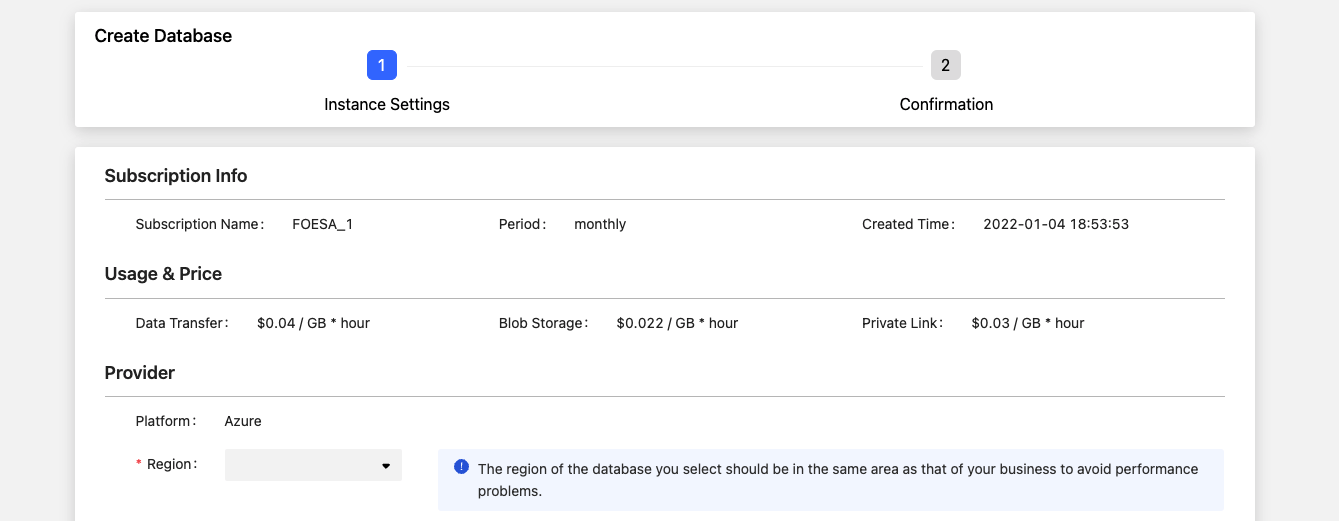
The region of the database you select should be in the same area as that of your business to avoid performance and speed problems.
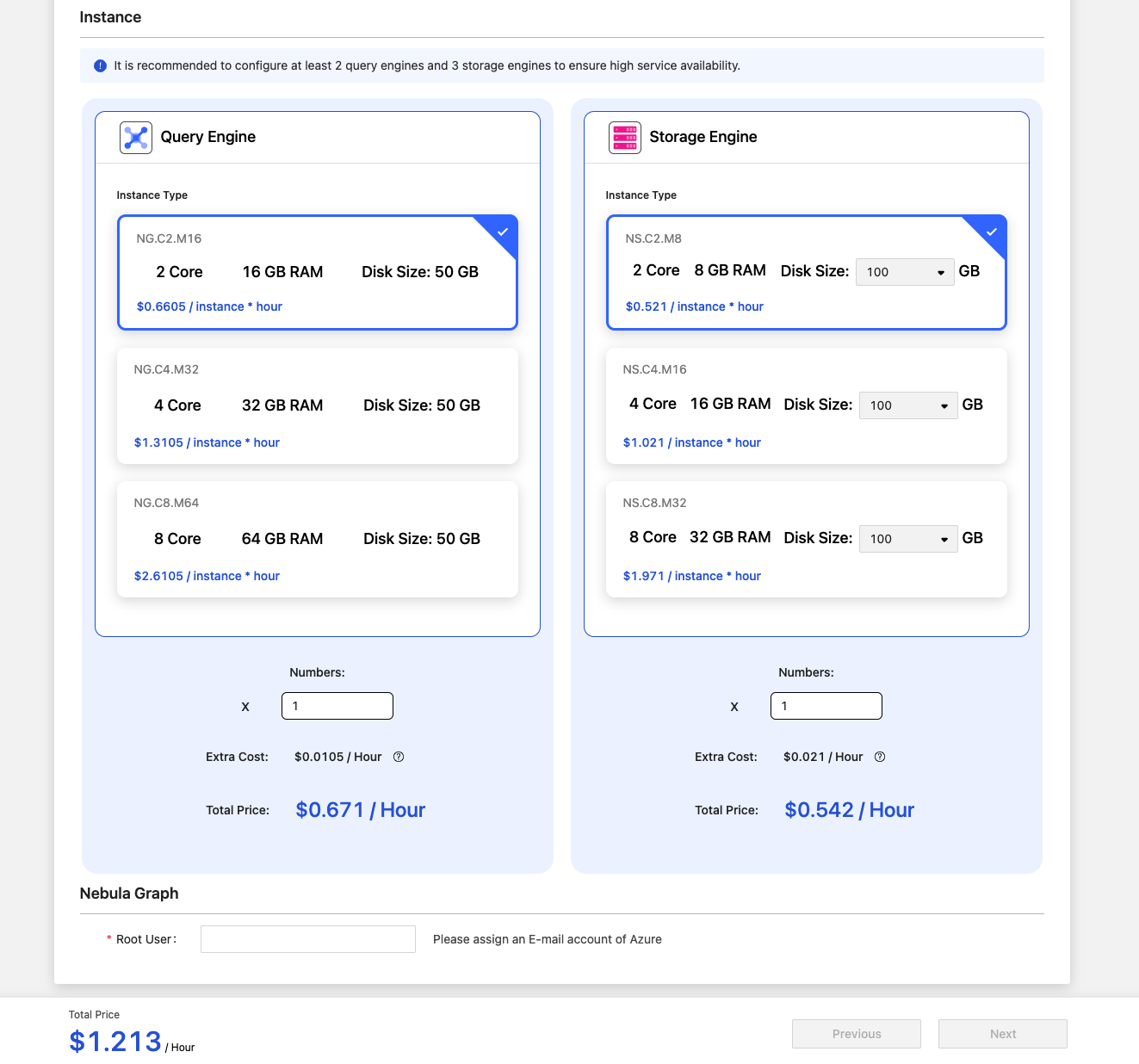
- Configure the type and the number of the query engine and the type, the number, and the disk size of the storage engine in the Instance section.
It is recommended to configure at least 2 query engines and 3 storage engines to ensure high service availability.
- Enter the specified Azure account mailbox as the Root user in the NebulaGraph section.
-
Click Next at the bottom of this page.
-
After confirmation, click Create at the bottom of this page.
-
For now, you have completed the configuration of the Solution. If the status of the Solution is running on the Cloud homepage, the Solution has been created successfully.
Solution status
You may see the following status and corresponding description on the Solution page.
| Status | Description |
|---|---|
| creating | The resources required by a Solution are ready and the Solution will be created automatically. At this time, the Solution is in the creating state, which may last from several minutes to over ten minutes. |
| starting | After you have restarted a Solution, it will be in the starting state for a while. |
| stopping | After you have clicked Stop Solution, the Solution will be in the stopping state for a while. |
| deleting | After you have clicked Delete Solution, the Solution will be in the deleting state for a while. |
| running | After you create a Solution, it will be in the running state for a long time. |
| stopped | After you stop a Solution, it will be in the stopped state for a long time. |
| deleted | After you delete a Solution, it will be in the deleted state for a long time. |
| create_failed | If you failed to create a Solution, the Solution will be in the create_failed state for a long time. |
| stop_failed | If you failed to stop a Solution, the Solution will be in the stop_failed state for a long time. |
| start_failed | If you failed to start a Solution, the Solution will be in the start_failed state for a long time. |
If a Solution stays in an intermediate state for a long time and the page remains unchanged after refreshing, it means that there is an exception and you need to submit an order to solve the problem.
If a Solution is in the state of create_failed, stop_failed, or start_failed, you can execute CREATE, STOP, or START again.