Deploy Studio
This topic describes how to deploy Studio locally by RPM, DEB, tar package and Docker.
RPM-based Studio
Prerequisites
Before you deploy RPM-based Studio, you must confirm that:
-
The NebulaGraph services are deployed and started. For more information, see NebulaGraph Database Manual.
-
The Linux distribution is CentOS, install
lsof. -
Before the installation starts, the following ports are not occupied.
Port Description 7001 Web service provided by Studio.
Install
-
Select and download the RPM package according to your needs. It is recommended to select the latest version. Common links are as follows:
Installation package Checksum NebulaGraph version nebula-graph-studio-3.10.0.x86_64.rpm nebula-graph-studio-3.10.0.x86_64.rpm.sha256 3.10.0 -
Use
sudo rpm -i <rpm_name>to install RPM package.For example, install Studio 3.10.0, use the following command. The default installation path is
/usr/local/nebula-graph-studio.$ sudo rpm -i nebula-graph-studio-3.10.0.x86_64.rpmYou can also install it to the specified path using the following command:
$ sudo rpm -i nebula-graph-studio-3.10.0.x86_64.rpm --prefix=<path>When the screen returns the following message, it means that the PRM-based Studio has been successfully started.
Start installing NebulaGraph Studio now...NebulaGraph Studio has been installed.NebulaGraph Studio started automatically. -
When Studio is started, use
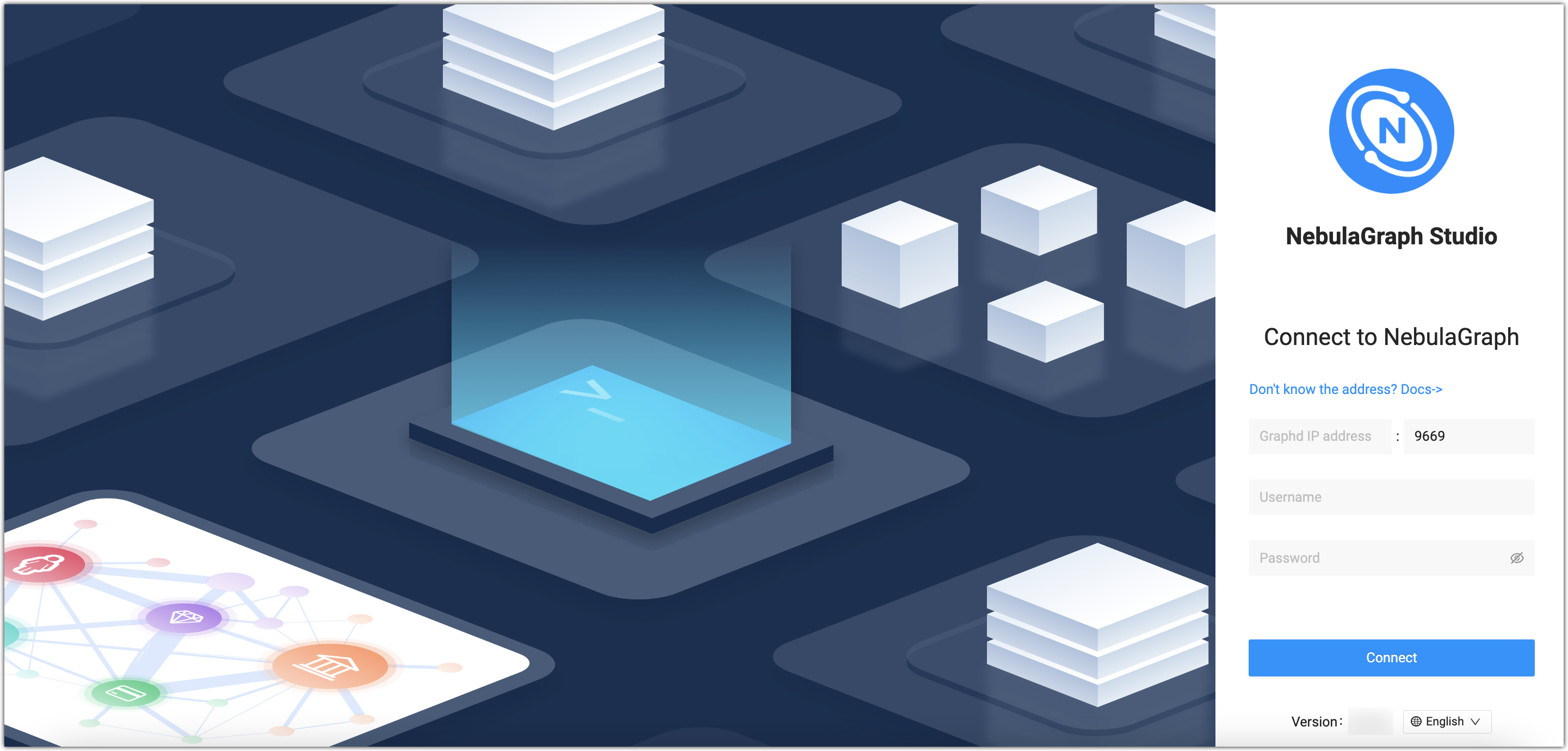
http://<ip address>:7001to get access to Studio.If you can see the Config Server page on the browser, Studio is started successfully.
Uninstall
You can uninstall Studio using the following command:
$ sudo rpm -e nebula-graph-studio-3.10.0.x86_64
If these lines are returned, PRM-based Studio has been uninstalled.
NebulaGraph Studio removed, bye~
Exception handling
If the automatic start fails during the installation process or you want to manually start or stop the service, use the following command:
- Start the service manually
$ bash /usr/local/nebula-graph-studio/scripts/rpm/start.sh
- Stop the service manually
$ bash /usr/local/nebula-graph-studio/scripts/rpm/stop.sh
If you encounter an error bind EADDRINUSE 0.0.0.0:7001 when starting the service, you can use the following command to check port 7001 usage.
$ lsof -i:7001
If the port is occupied and the process on that port cannot be terminated, you can modify the startup port within the studio configuration and restart the service.
//Modify the studio service configuration. The default path to the configuration file is `/usr/local/nebula-graph-studio`.
$ vi etc/studio-api.yam

//Modify this port number and change it to any
Port: 7001

//Restart service
$ systemctl restart nebula-graph-studio.service
DEB-based Studio
Prerequisites
Before you deploy DEB-based Studio, you must do a check of these:
-
The NebulaGraph services are deployed and started. For more information, see NebulaGraph Database Manual.
-
The Linux distribution is Ubuntu.
-
Before the installation starts, the following ports are not occupied.
Port Description 7001 Web service provided by Studio -
The path
/usr/lib/systemd/systemexists in the system. If not, create it manually.
Install
-
Select and download the DEB package according to your needs. It is recommended to select the latest version. Common links are as follows:
Installation package Checksum NebulaGraph version nebula-graph-studio-3.10.0.x86_64.deb nebula-graph-studio-3.10.0.x86_64.deb.sha256 3.12.0 -
Use
sudo dpkg -i <deb_name>to install DEB package.
For example, install Studio 3.10.0, use the following command:
$ sudo dpkg -i nebula-graph-studio-3.10.0.x86_64.deb
-
When Studio is started, use
http://<ip address>:7001to get access to Studio.If you can see the Config Server page on the browser, Studio is started successfully.
Uninstall
You can uninstall Studio using the following command:
$ sudo dpkg -r nebula-graph-studio
tar-based Studio
Prerequisites
Before you deploy tar-based Studio, you must do a check of these:
-
The NebulaGraph services are deployed and started. For more information, see NebulaGraph Database Manual.
-
Before the installation starts, the following ports are not occupied.
Port Description 7001 Web service provided by Studio
Install and deploy
-
Select and download the tar package according to your needs. It is recommended to select the latest version. Common links are as follows:
Installation package Studio version nebula-graph-studio-3.10.0.x86_64.tar.gz 3.10.0 -
Use
tar -xvfto decompress the tar package.$ tar -xvf nebula-graph-studio-3.10.0.x86_64.tar.gz -
Deploy and start nebula-graph-studio.
$ cd nebula-graph-studio$ ./server -
When Studio is started, use
http://<ip address>:7001to get access to Studio.If you can see the Config Server page on the browser, Studio is started successfully.
Stop Service
You can use kill pid to stop the service:
$ kill $(lsof -t -i :7001) #stop nebula-graph-studio
Docker-based Studio
Prerequisites
Before you deploy Docker-based Studio, you must do a check of these:
-
The NebulaGraph services are deployed and started. For more information, see NebulaGraph Database Manual.
-
On the machine where Studio will run, Docker Compose is installed and started. For more information, see Docker Compose Documentation.
-
Before the installation starts, the following ports are not occupied.
Port Description 7001 Web service provided by Studio
Procedure
To deploy and start Docker-based Studio, run the following commands. Here we use NebulaGraph v3.10.0 for demonstration:
-
Download the configuration files for the deployment.
Installation package NebulaGraph version nebula-graph-studio-3.10.0.tar.gz 3.10.0 -
Create the
nebula-graph-studio-3.10.0directory and decompress the installation package to the directory.$ mkdir nebula-graph-studio-3.10.0 -zxvf nebula-graph-studio-3.10.0.gz -C nebula-graph-studio-3.10.0 -
Change to the
nebula-graph-studio-3.10.0directory.$ cd nebula-graph-studio-3.10.0 -
Pull the Docker image of Studio.
$ docker-compose pull -
Build and start Docker-based Studio. In this command,
-dis to run the containers in the background.$ docker-compose up -dIf these lines are returned, Docker-based Studio v3.x is deployed and started.
Creating docker_web_1 ... done -
When Docker-based Studio is started, use
http://<ip address>:7001to get access to Studio.
Run ifconfig or ipconfig to get the IP address of the machine where Docker-based Studio is running. On the machine running Docker-based Studio, you can use http://localhost:7001 to get access to Studio.
If you can see the Config Server page on the browser, Docker-based Studio is started successfully.
Helm-based Studio
This section describes how to deploy Studio with Helm.
Prerequisites
Before installing Studio, you need to install the following software and ensure the correct version of the software:
| Software | Requirement |
|---|---|
| Kubernetes | >= 1.14 |
| Helm | >= 3.2.0 |
Install
-
Use Git to clone the source code of Studio to the host.
$ git clone https://github.com/vesoft-inc/nebula-studio.git -
Make the
nebula-studiodirectory the current working directory.$ cd nebula-studio -
Assume using release name:
my-studio, installed Studio in Helm Chart.$ helm upgrade --install my-studio --set service.type=NodePort --set service.port=30070 deployment/helm
The configuration parameters of the Helm Chart are described below.
| Parameter | Default value | Description |
|---|---|---|
| replicaCount | 0 | The number of replicas for Deployment. |
| image.nebulaStudio.name | vesoft/nebula-graph-studio | The image name of nebula-graph-studio. |
| image.nebulaStudio.version | v3.10.0 | The image version of nebula-graph-studio. |
| service.type | ClusterIP | The service type, which should be one of NodePort, ClusterIP, and LoadBalancer. |
| service.port | 7001 | The expose port for nebula-graph-studio's web. |
| service.nodePort | 32701 | The proxy port for accessing nebula-studio outside kubernetes cluster. |
| resources.nebulaStudio | The resource limits/requests for nebula-studio. | |
| persistent.storageClassName | "" | The name of storageClass. The default value will be used if not specified. |
| persistent.size | 5Gi | The persistent volume size. |
-
When Studio is started, use
http://<node_address>:30070/to get access to Studio.If you can see the Config Server page on the browser, Studio is started successfully.
Uninstall
$ helm uninstall my-studio
Next to do
On the Config Server page, connect Docker-based Studio to NebulaGraph. For more information, see Connect to NebulaGraph.